The final word on file delivery has not been said. Besides standards from the Ghent Workgroup, PDF/X and custom profiles, I still come across joboptions, written specifications and no specifications at all. Time for a simple approach.
Complexity
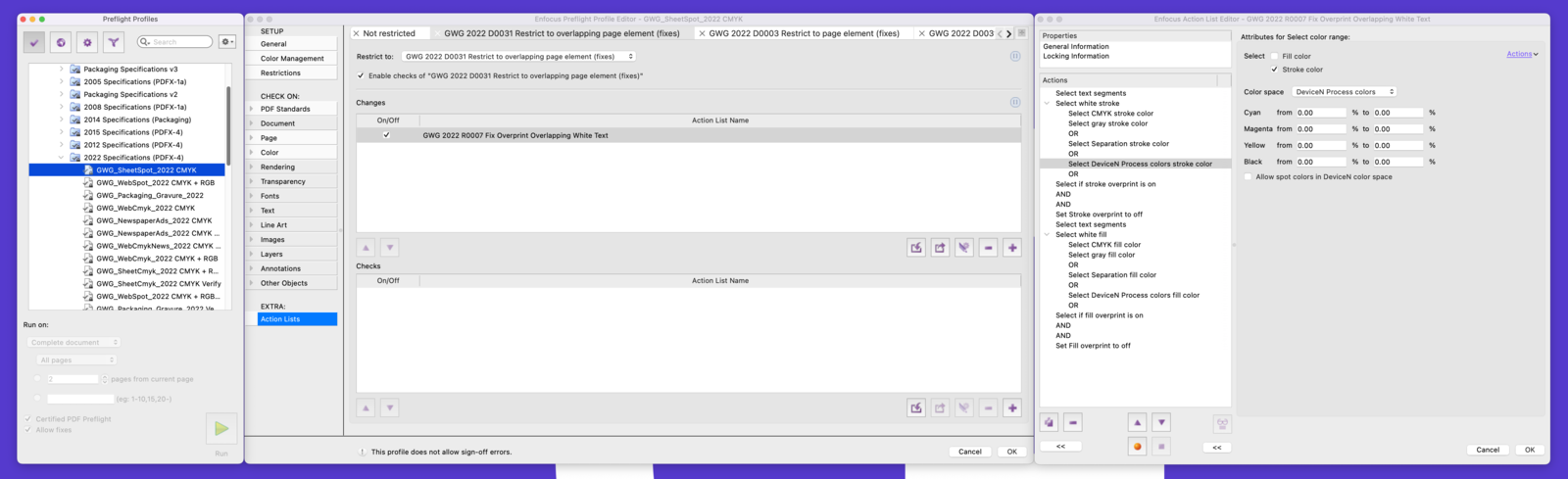
Analyse the Ghent Workgroup profile 'GWG_SheetSpot_2022 CMYK' in PitStop Pro. Besides checks and fixes you'll see 'Restricting Actions' that apply only to certain selections — this example only repairs overprint on overlapping white text objects. Devising such actions takes knowledge; that's why these standards are widely used.
Responsibility
The standards are wonderful — but they also alter the PDF. Suppose a company delivers a non-preflighted file, your company is the receiving party, but the PDF still goes through such a profile. Black is set to overprint, spot-colour names adjusted, white knocked out… Wonderful! But when a lot is changed, something can go wrong or disappear too. Who is responsible then?
The simple method
Let's build a profile that focuses only on printability and respects the layout. Is there a layout mistake? Too bad — we only check whether the PDF prints, exactly as the supplier made it. Ideal for a standard digital print workflow.
Getting started
Create a new Certified PDF Profile in PitStop Pro, for example 'Simple PDF Check v1.0'. Always give it a version number; for a new variant copy it to v1.0b1 (beta 1) until it's right, then v1.1.
Category 'PDF Standards'
We don't want loose colour separations or unknown objects. A PDF is like a folder: you can put anything in it, but that doesn't mean it prints.
Pre-separated pages — Type = Error;
Unknown objects — Type = Error.
Category 'Document'
We won't even try to repair a corrupt document; the chance of errors is high. Security also blocks the print process.
Damaged — Type = Error;
Security usage — select 'any' (Type = Error);
Security Printing — 'is not allowed' (Type = Error);
Security High Resolution Printing — 'is not allowed' (Type = Error).
Category 'Rendering'
Halftone simulations in artwork can produce undesirable results.
Custom Halftone — 'is used for any element' (Type = Error).
Category 'Fonts'
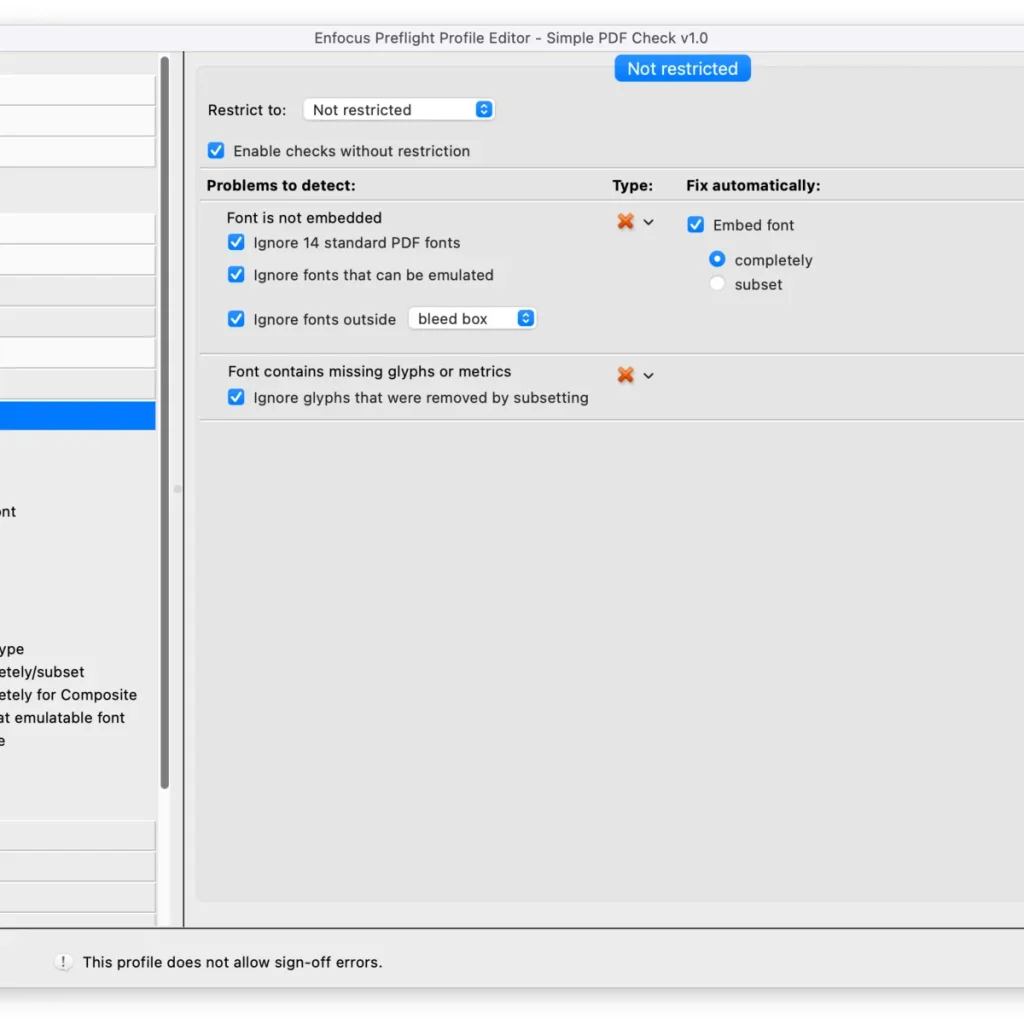
A non-embedded font cannot be printed. The 14 standard fonts need not be embedded, but for safety we want them to be. A font not present on the system cannot be embedded, nor converted to vectors — you need the font for that.
Not embedded — select 'Ignore 14 standard PDF fonts', 'Ignore fonts that can be emulated' and 'Ignore fonts outside bleed box' (Type = Error). Note: 'Fix automatically: Embed font completely';
Corrupt fonts — 'Ignore glyphs which were removed by subsetting' (Type = Error).
Category 'Other objects'
Objects that don't contribute to 'print' are useless to us. JavaScript can produce unwanted results, run triggers or even contain viruses; we also reject actions and buttons.
JavaScript — 'Remove JavaScript' (Type = Error);
Actions — 'Remove actions' (Type = Error). Ever seen printed ink move on paper? Would be nice, but no;
Form fields — 'Flatten form fields' (Type = Information). The creator saw a filled-in form and expects it printed that way; so we flatten it to page objects.
Final word
Everything can be far more elaborate — feel free to make your own variant.