
You have created a great design in Canva. You export it as a PDF, send it to the printer, and then the reply comes back: "This file has problems." Sound familiar? Canva is great to design with, but the PDFs it produces are often full of invisible clutter that confuses the printing press. In this article you will read why that happens and how to fix it with Enfocus PitStop in one go.
Why does a Canva PDF cause problems at the printer?
Canva is made for the screen, not for the printing press. When you export a design, Canva includes things you never see, but that the printer does encounter. The biggest culprit is transparency: layers and objects marked as "transparent", even when there is nothing transparent in them.
A printing press does not like that hidden transparency. It can lead to unexpected colour differences, white edges or objects that suddenly print differently than on your screen. On top of that, Canva often includes empty layers, duplicate fonts and hidden objects that make the file unnecessarily heavy and messy.
During the Enfocus webinar of 4 March 2026 ("PitStop tips and tricks"), product manager Loïc Aigon and solution architect Freddy Pieters covered exactly this topic: why PitStop reports transparency in a Canva file, and how to fix it quickly.
The solution: the "Just make my Canva PDF work" profile
The Enfocus community shares a ready-made preflight profile called "Just make my Canva PDF work!". A preflight profile is a kind of checklist that PitStop runs automatically: it checks your PDF for problems and fixes them in a single action. So you do not have to go through all the settings yourself.
The profile (version 3) cleans up the typical Canva clutter. Among other things, it does the following:
Removes transparency settings when there are no transparent objects — this is the main cause of most printing problems.
Removes fully transparent objects that add nothing to the design anyway.
Removes empty layers that make the file unnecessarily heavy.
Consolidates fonts, so the same font is not stored multiple times in the file.
Removes hidden objects that you do not see on screen but that travel along in the PDF.
Removes unnecessary clipping masks.
Note: this profile works from PitStop 25.11 or higher. If you have an older version, you need to update first.
Step by step: cleaning up a Canva PDF
For those who want a bit more technical detail, here is the procedure in PitStop Pro:
Open your Canva PDF in Adobe Acrobat with the PitStop Pro plug-in.
Load the "Just make my Canva PDF work!" preflight profile in PitStop.
Run the preflight. PitStop detects the transparency and the other problems and fixes them automatically.
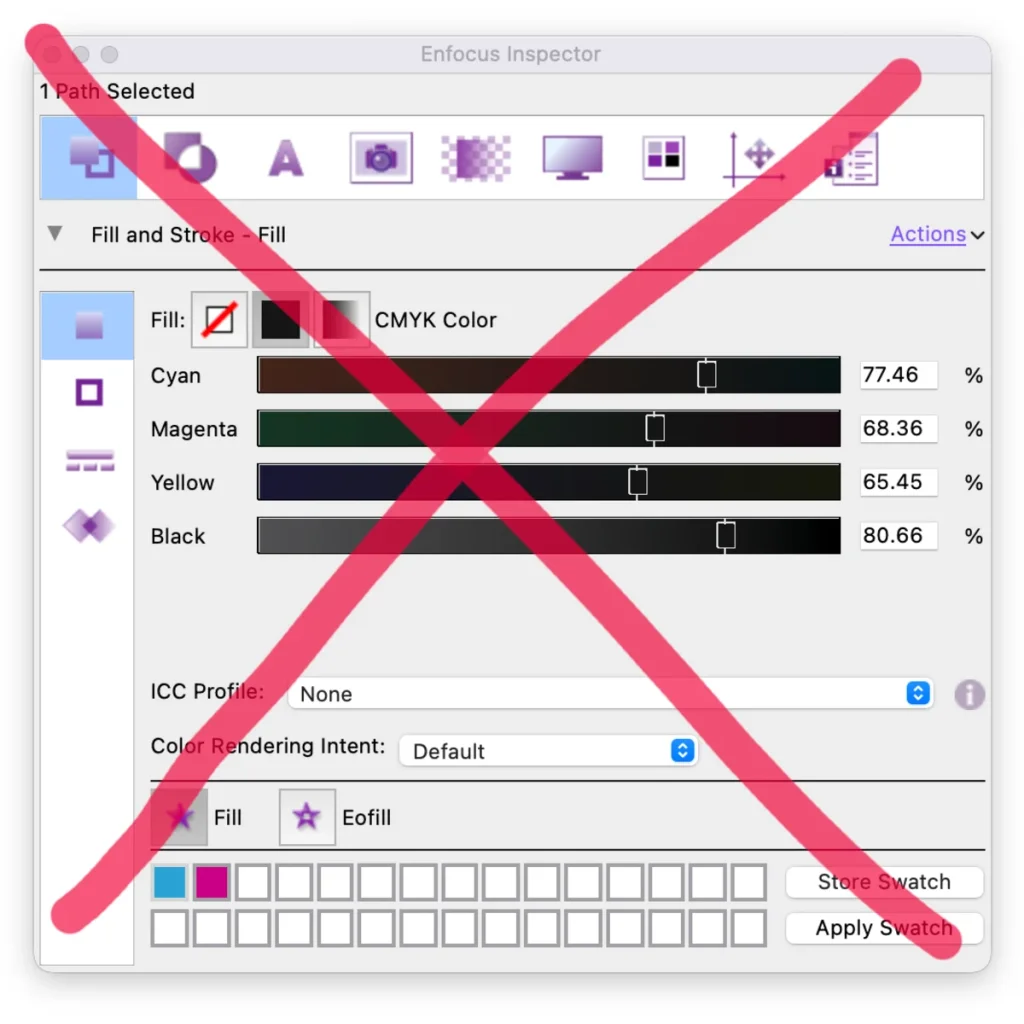
Want to check what happens to the transparency yourself? PitStop Pro has a separate Inspector tab for transparency, transparency groups and masks. There you select transparency groups and view their properties.
Save the cleaned-up PDF. It is now print-ready.
Not sure why PitStop gives a certain message? Since PitStop 25.11 there is an AI chatbot in the program: Botus. During the webinar, Aigon and Pieters showed how Botus answers your PitStop questions directly in the software. You only need to enable Botus with an active PitStop subscription and permission for data analysis.
Frequently asked questions
Why does PitStop report transparency in my Canva PDF when I have not used anything transparent?
Canva often marks objects and layers as transparent, even when there is no transparent content. PitStop flags that setting. The "Just make my Canva PDF work!" profile removes the transparency setting when there are no transparent objects.
Do I need PitStop Pro or PitStop Server for Canva files?
For individual files you use PitStop Pro: the plug-in for Adobe Acrobat that lets you clean up and check manually. If you process large numbers of files automatically, PitStop Server is more suitable.
Which PitStop version do I need at minimum for the Canva profile?
The profile works from PitStop 25.11. With an older version the profile will not run.
What exactly is a preflight profile?
A preflight profile is a preset checklist. PitStop runs through it, reports problems and fixes them where possible — automatically, in a single action.
Does the profile solve all Canva problems?
The profile tackles the known Canva pitfalls: hidden transparency, empty layers, duplicate fonts, hidden objects and unnecessary masks. Always check the final result before going to press.
Get started
Do you regularly create designs in Canva and want to send them to the printer without hassle? With Enfocus PitStop you clean up the hidden clutter in one go. GrafiStore is your Dutch supplier of Enfocus PitStop Pro and PitStop Server — with advice in Dutch and help setting up preflight profiles.
View PitStop Pro and PitStop Server on GrafiStore.com or get in touch for advice on the right version for your workflow.