Reducing PDF file sizes has obvious benefits: faster distribution, less storage and more efficient workflows. Yet excessive compression can harm a document's usability. How do you strike the right balance?
The file-size dilemma
A challenging aspect is preserving quality. Extremely compressed files can be problematic in print processes, as can an abundance of 'nodes' — anchor points of Bézier curves in vector drawings and fonts. Too many nodes increase complexity and hinder ripping, despite a small file size. Bitmaps can actually grow the file size but speed up ripping. On top of that, a PDF often contains a lot of 'junk' that is useless during printing.
Quality
The most common compression methods are ZIP and JPEG. ZIP is lossless; JPEG usually produces smaller files. Beware: at too low a quality, loss occurs, and every time you re-apply JPEG compression you keep less data. So do not choose the highest compression, but the lowest compression at high or maximum quality.
Have you been RIPped?
RIP processes sometimes take very long: the job is sent, but reading it in takes forever. That is related to the complexity of the PDF. By simplifying it you speed up and simplify the process.
In practice
Recently I received a simple 14 MB file with the question whether it could be smaller. With Enfocus PitStop Pro (what else?) I tailored the standard 'Optimize PDF' action to my needs. The file was immediately reduced to 1.2 MB — without loss of quality. How?
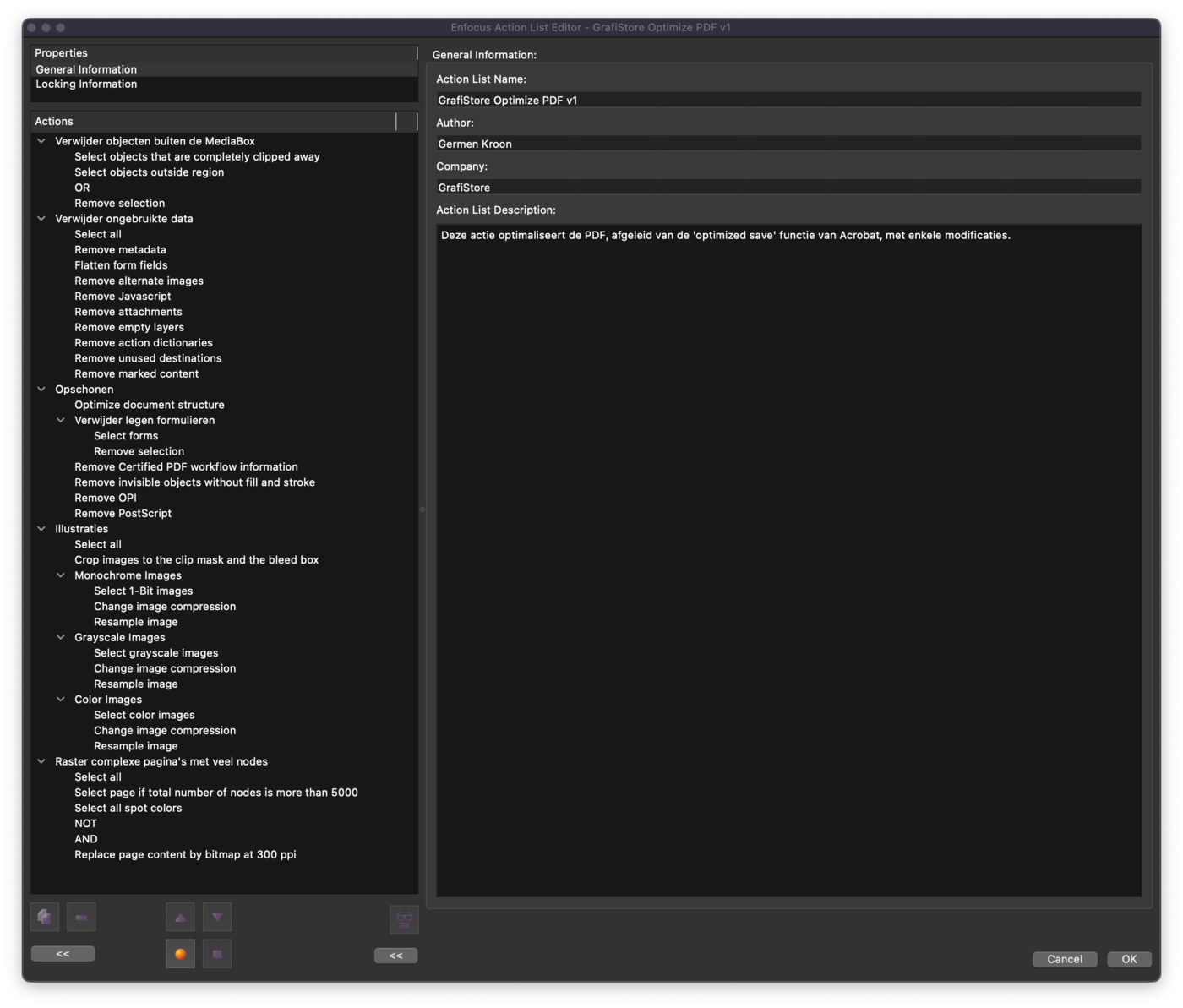
This is due to removing:
Objects outside the PDF canvas;
Fully masked content;
Metadata;
Alternate images;
JavaScript;
Empty layers;
Actions (for presentations);
References (anchors for hyperlinks);
Marked content;
Form fields;
Certified PDF information;
Invisible objects (without stroke or fill);
OPI and PostScript.
We also do this:
Flatten filled-in forms;
Optimise the document structure;
Crop images to the clipping mask and at most the bleed box;
Compress 1-bit images to CCITT Group 4;
Compress other images to JPEG at maximum quality;
Bring image resolution to 300 dpi;
Convert complex pages with more than 5000 nodes (without spot colours) to an image.
Challenges
PDFs with many nodes can be rasterised per page or per 'area'. Just like transparency flattening in the past, you can now check for regions of, say, 20 × 20 mm with more than 300 nodes and rasterise only those areas — provided they contain no spot colours. Collect PDFs that cause problems in the printer or RIP and investigate the cause; this also gives a better picture of how many nodes your RIP or printer can handle.
Conclusion
Smart PDF compression requires a balance between efficiency and integrity. The goal is not just smaller files, but achieving that in a way that preserves quality and usability — so PDFs remain accessible and usable even after compression.