ISO 19593-1:2018 — Processing steps
A few years ago the packaging subcommittee of the Ghent Workgroup (gwg.org) developed a standard for packaging and labels. It has also proven very useful for regular and large-format print.
In July 2018, ISO (iso.org) published a revised version of the GWG proposal, known as ISO 19593-1. The documentation can be downloaded from the ISO site for one hundred euros (2024 price, may have changed), but the original version is freely available via the GWG website.
What it is about
The standardisation provides guidelines for building PDF documents, so that cutting contours, varnish, braille, legends, foils and other content can be produced predictably. PDF layers categorise and label the data for easy reuse, supported by Enfocus PitStop.
Assigning colour to a processing step — a practical example
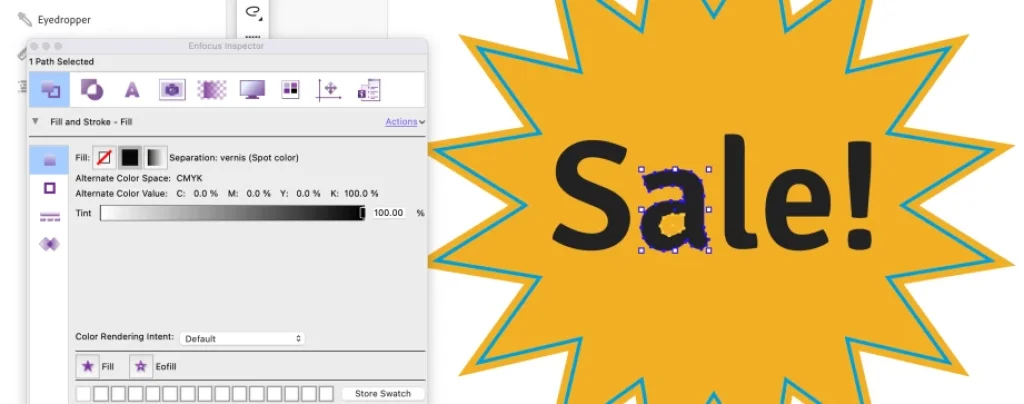
Suppose we received a sticker with a known varnish and a free shape for laser cutting. The varnish is a spot colour on top of the artwork. We isolate them for their own processing step.
Step 1
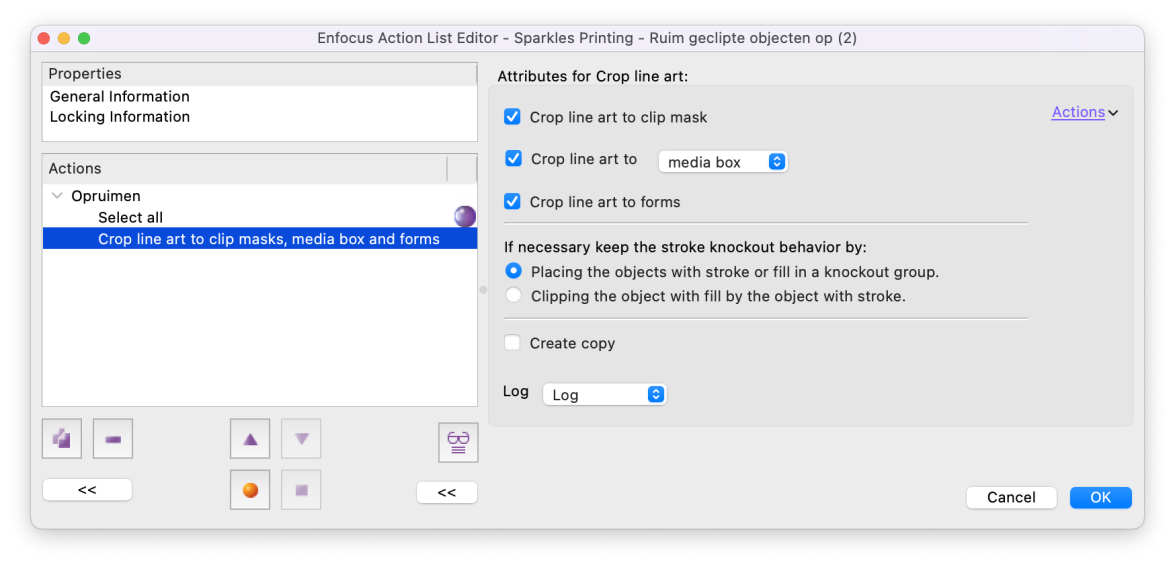
Create a new action in PitStop Pro. Start with a group that first selects the whole PDF and crops all objects to their clipping masks. This prevents hidden objects from accidentally reappearing.
Step 2
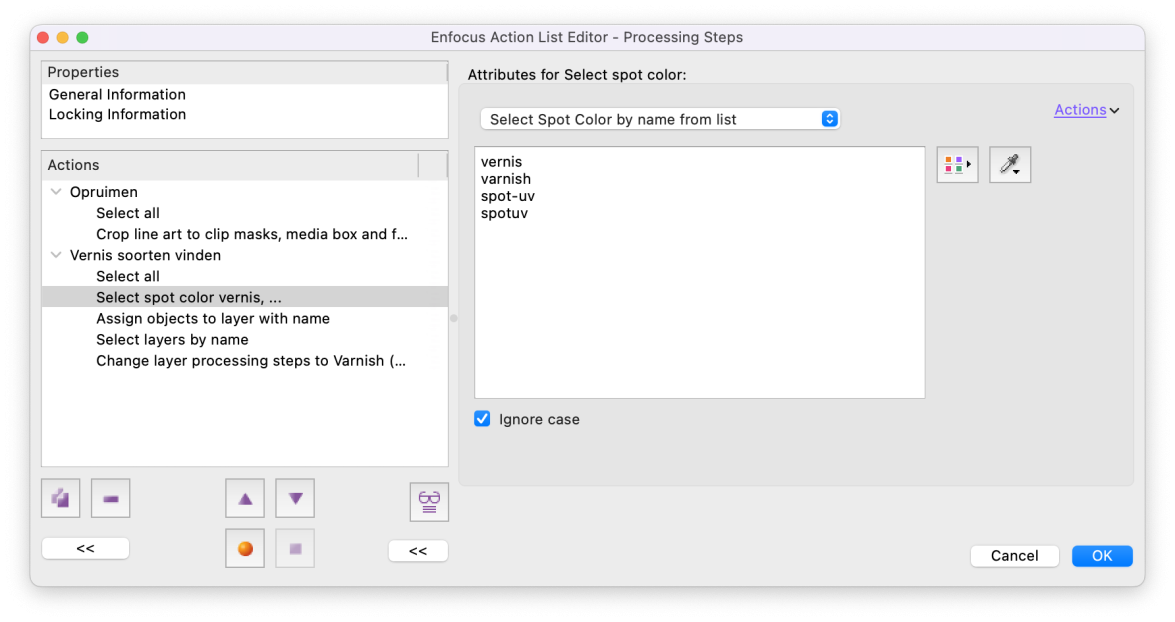
Select common varnish colour names: spot colours called "vernis", "varnish", "spot-uv" and others you regularly encounter. By selecting "ignore case" you do not have to pick each variant separately.
Step 3
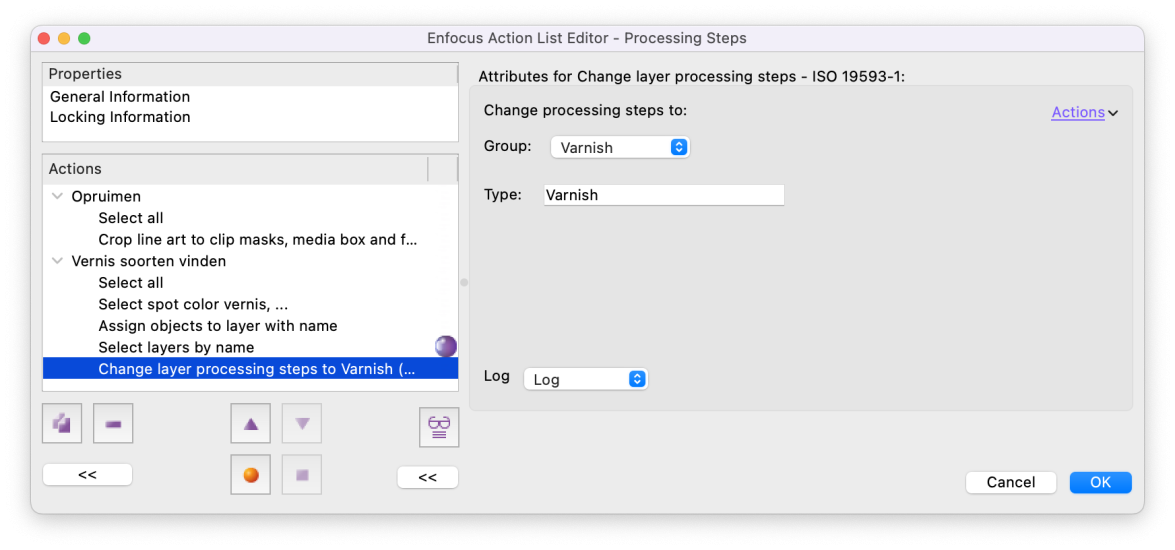
Add the "Add objects to layer" action and name this layer "Varnish". Make sure the objects are moved out of their own layer (no copies). Then select the "Varnish" layer, choose "Change layer processing steps" and assign the selection to the ISO-defined "Group: Varnish" and "Type: Varnish".
Step 4
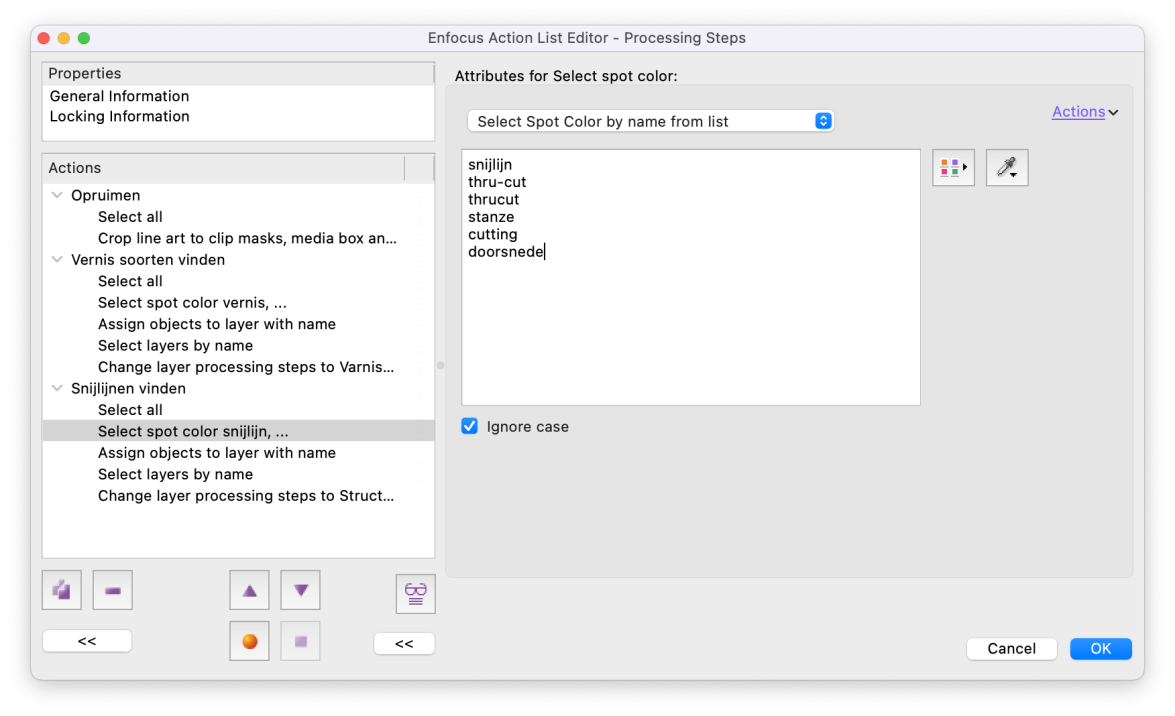
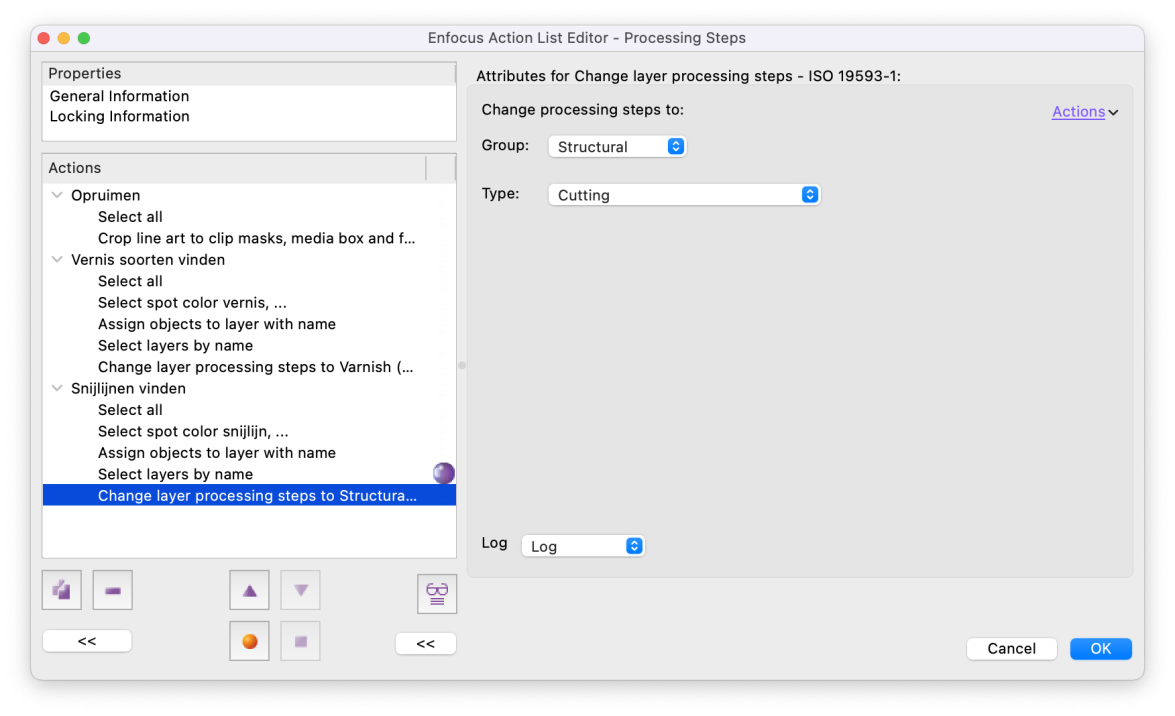
Duplicate the last group, but now look for all cutting lines. Here we chose that all die shapes (fully cut through) always go into the "Cutting" layer. To this layer we assign "Group: Structural" and "Type: Cutting".
Step 5
Running this action in PitStop Pro or Server places all technical spot colours directly in the right layer and assigns the correct standard names. Anyone checking the PDF sees at a glance what each layer is for.
What is the benefit?
Applications other than PitStop — such as Esko ArtPro, Enfocus Switch, callas pdfToolbox, Phoenix, Caldera, Onyx and Zünd — can work with this. For example, you can exclude all "Structural" processing steps on your RIP so they are never printed by accident. Tip: where possible, give spot colours the same names as the processing steps; this makes it even more predictable. All credits go to the Ghent Workgroup.